We support VSCode as one of our IDE for most development work.
Here are some basics and recommendation that can add some help to your development, or save you a few clicks. You might already know these, or in case not, it is a good time to catch up, please walk-through them one by one if you have not.
This is written in a cheat-sheet like format without detailed description for quick look-up.
Why VSCode
VSCode has GUI and has a low learning curve to start with, it can be used on Linux, MacOS and Windows.
If you have not chosen a supported IDE (either VSCode or vim), we recommend VSCode for beginners.
Tabs
In general, we recommend you to open one VSCode window per repository
git clone git@github.com:flyingmilktea/onboarding-basics.git

code onboarding-basics
Explorer
Here you will find all files in this repository, and click to edit each one

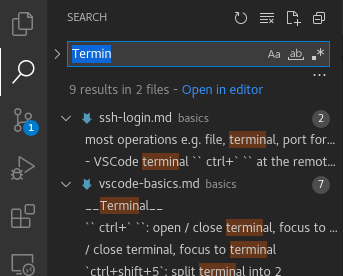
Search
To search for keywords in the whole repository, and click to edit the location
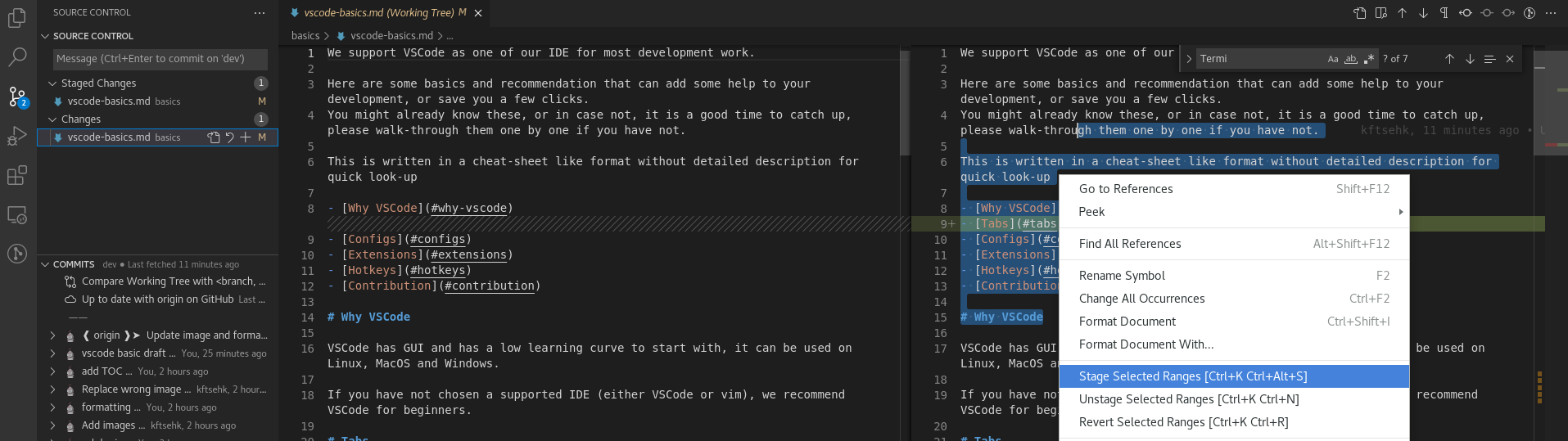
Source Control
To track your staged / local changes, allows you to open a file to pick specific lines to stage
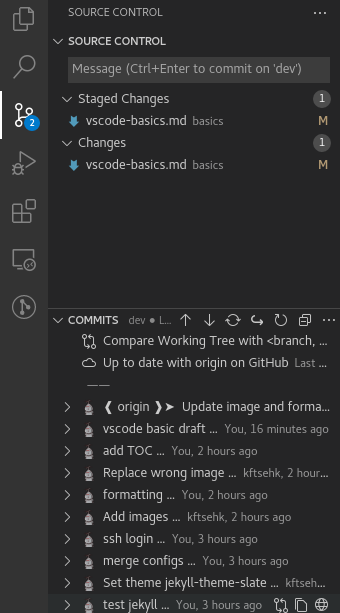
Another feature is from git-lens plugin that show commit history
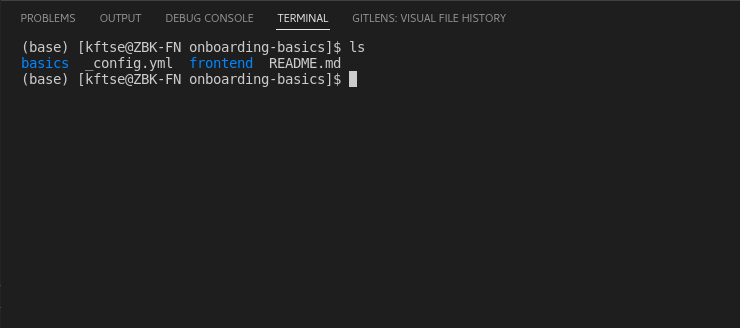
Terminal
To run commands during development, command-line tools are necessary for development, e.g. from npm, pip, git or other tools
Configs
Using VSCode remote-ssh plugin
Remote-ssh plugin allows you to work at remote machine as if it is local, it handles most operations e.g. file, terminal, port forwarding automatically.
We assume you to already have VSCode installed.
-
Install remote-ssh plugin
search for this plugin name
ms-vscode-remote.remote-ssh, pressinstall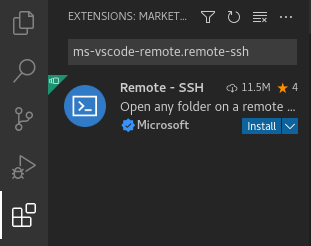
-
Connect to remote using remote-ssh plugin
As you have already set ssh-config, login is simple
- Press
ctrl+shift+Pand typeSSH
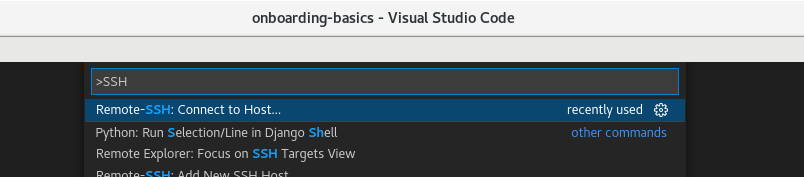
- click
Remote-SSH: Connect to Host...and typefcai4
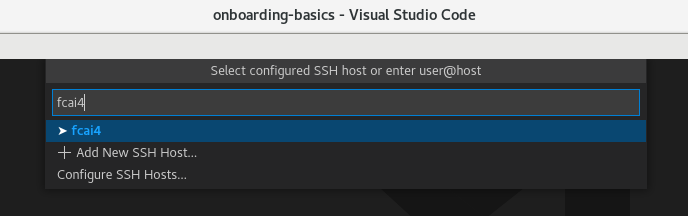
A new VSCode window should open.
You should check that in this window
- VSCode open file
ctrl+k ctrl+ois showing files at remote, not your local machine - VSCode terminal
ctrl+`at the remote machine
- Press
These configs can be set using UI or JSON
ctrl+shift+P > Preferences: Open Settings (UI)
Recommended
"terminal.integrated.scrollback": 100000: increase your scrollback buffer large enough to see some error message, default of 1000 is grossly not enough.
"editor.formatOnSave": true: format your code on save, saves typing a few spaces and ensures formatting is correct. This feature calls the formatter of your choice, you have to install and config the formatter properly for this feature to work.
"diffEditor.ignoreTrimWhitespace": false: python formatting is based on whitespace, presence or not make a difference.
"terminal.integrated.allowChords": false: if you will use nano editor on terminal sometimes.
Disable ctrl+w to close VSCode completely if it does: different version of VSCode seem to have different behavior, see microsoft/vscode#54492.
Especially you are doing at remote, closing VSCode means also disconnect from the terminal and lose all remote apps that you have open, and environment variables you have set, just re-opening VSCode doesn’t get you back those states at remote.
Extensions
Note: In order to use extension in remote machine, some extensions must be installed both at local and remote. If you find some extension missing in remote machine, visit the extension tab and Install in SSH: ....

General
ms-vscode-remote.remote-ssh: Use VSCode on remote directory just like local
aaron-bond.better-comments: Highlight comments by categories
eamodio.gitlens: Integrate GUI git diff and history, among other features, into VSCode
Language Specific
ms-python.vscode-pylance: python3 syntax highlighter and linter support
yzhang.markdown-all-in-one: markdown syntax highlighter and formatter
esbenp.prettier-vscode: javascript formatter
graphql.vscode-graphql: graphql syntax highlighter
Hotkeys
Advanced features and configs
ctrl+shift+P: search for config of VSCode or plugin, most function can be started from this hot-key, then do a search
ctrl + -: Decrease text size
ctrl + =: Increase text size
Editing
ctrl+f: find, you can also do highlight then ctrl+f (or other find / replace hotkey), VSCode generate the required Regex for you.
ctrl+shift+F: find globally
ctrl+h: replace
ctrl+shift+H: replace globally
ctrl+g: go to line (enter a line number)
ctrl+shift+arrow: multi-line text cursor
ctrl+/: comment / uncomment
ctrl+w: close file
ctrl+shift+I: format file
Terminal
ctrl+`: open / close terminal, focus to terminal
ctrl+shift+5: split terminal into 2
ctrl+shift+`: new terminal
ctrl+d: terminate current terminal
Contribution
If you find something useful and want to add it here, please do.